Wind calculator
The Wind screen combines bag selection, shot inputs and ring adjustments. Your goal is to match the club distance and shot conditions, then use the displayed ring value.
Select a bag and mode
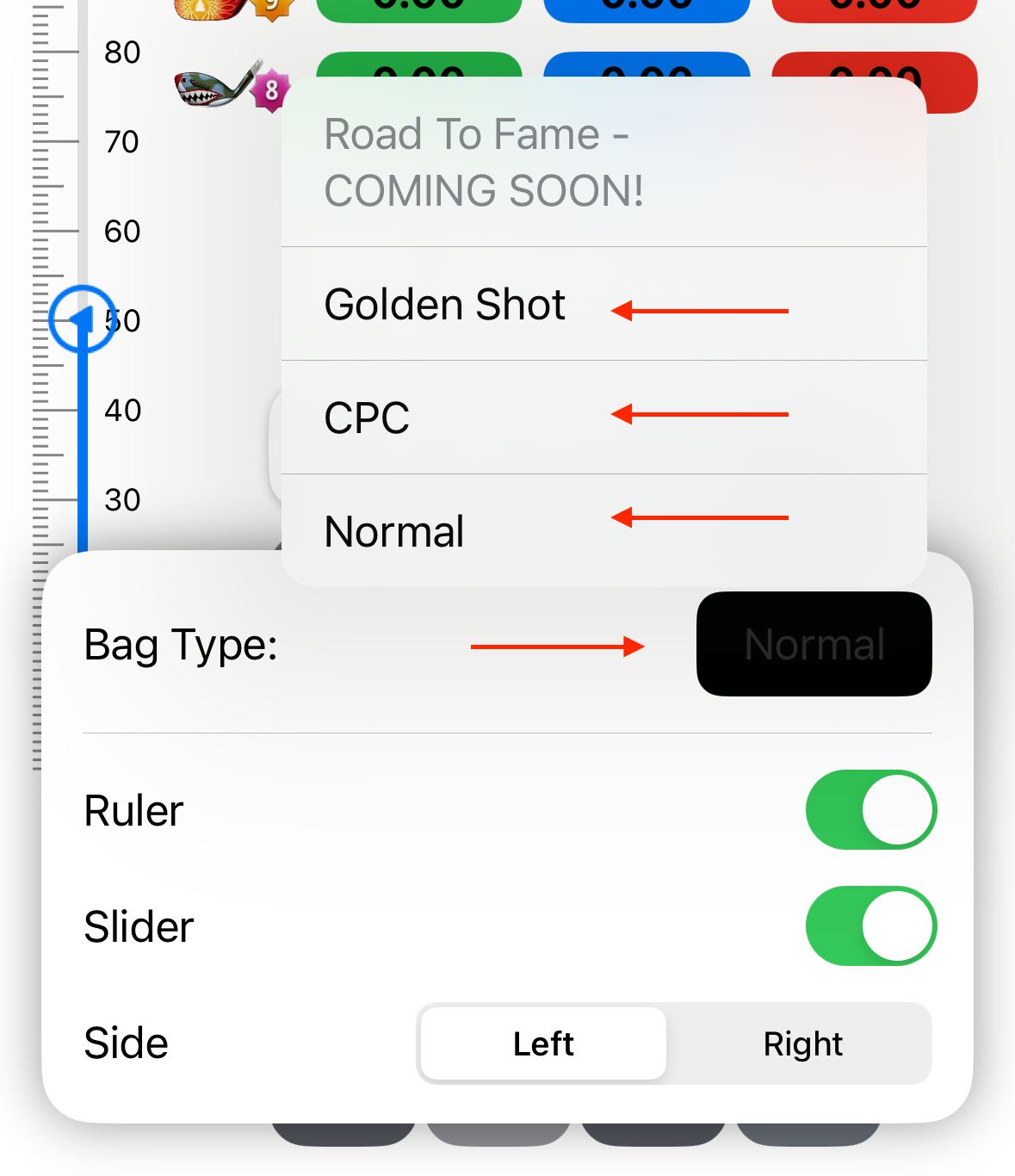
Tap the bag selector at the top of the screen, choose an account and then choose a bag. Open the action menu to switch between normal, Golden Shot and CPC bag types.
Enter the shot
- Enter wind
Use the keypad to enter the wind value displayed in Golf Clash.
- Set elevation
Use the positive or negative elevation buttons. Long-press an elevation button to reset elevation to zero.
- Choose a club
Tap the club tile you are using. The selected club is highlighted.
- Set distance
Move the slider to the club position for the shot. Tap the slider tile to enter its value directly with the keypad.
- Read the adjustment
Use the min, slider, mid or max ring value that corresponds to the shot position.
Powerballs
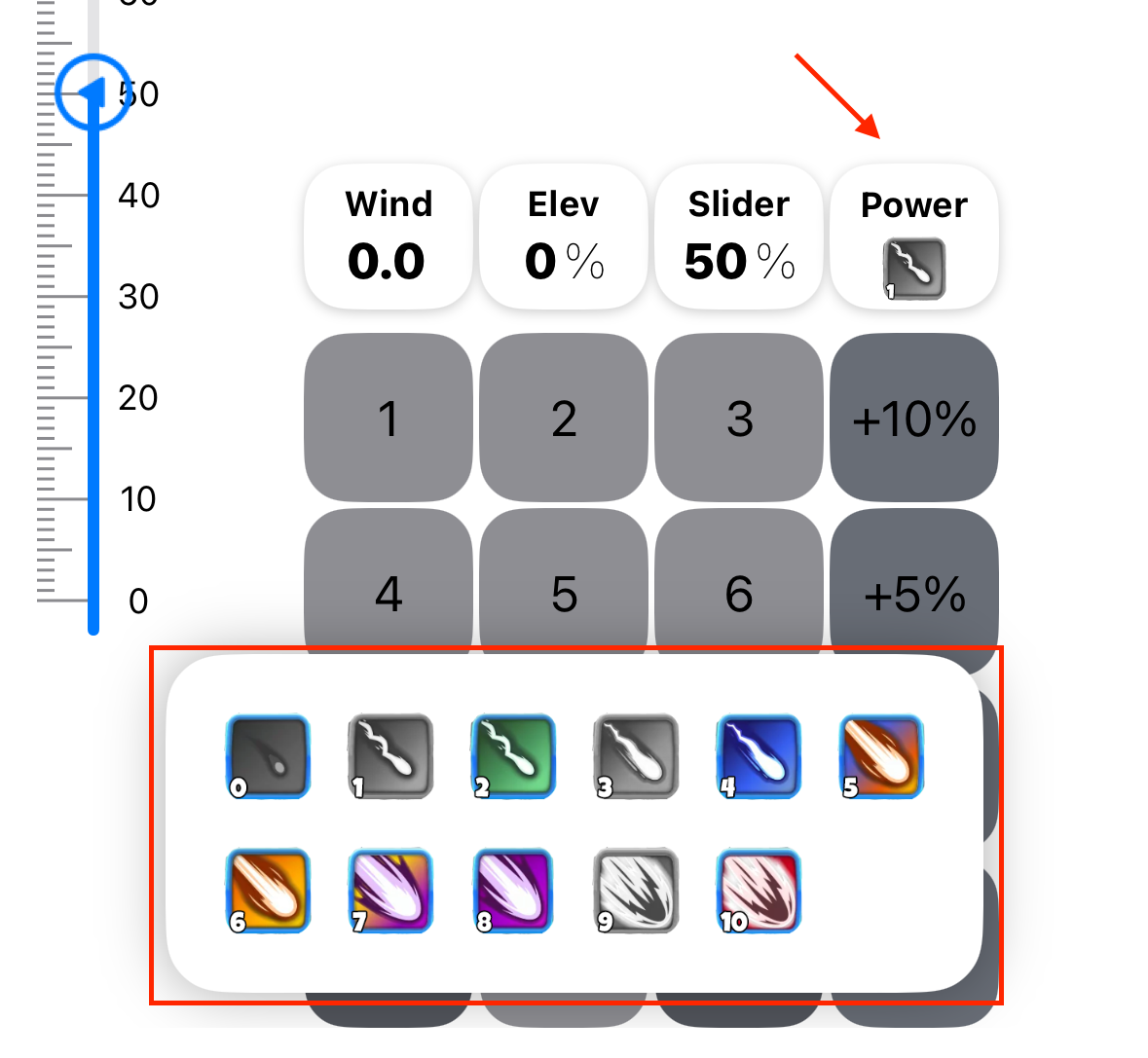
Tap the powerball tile, then choose the powerball you are using. Clash Caddie includes its wind resistance in the adjustment. Return to the same menu to clear or change it.
Background notification
Tap a club to highlight it before leaving Clash Caddie. When the wind is greater than zero, moving the app to the background can show that club's adjustment in a notification.