Wind and input overlay
The overlay lets you enter shot values without leaving Golf Clash. It can be collapsed when you need more screen space.
Open and position the overlay
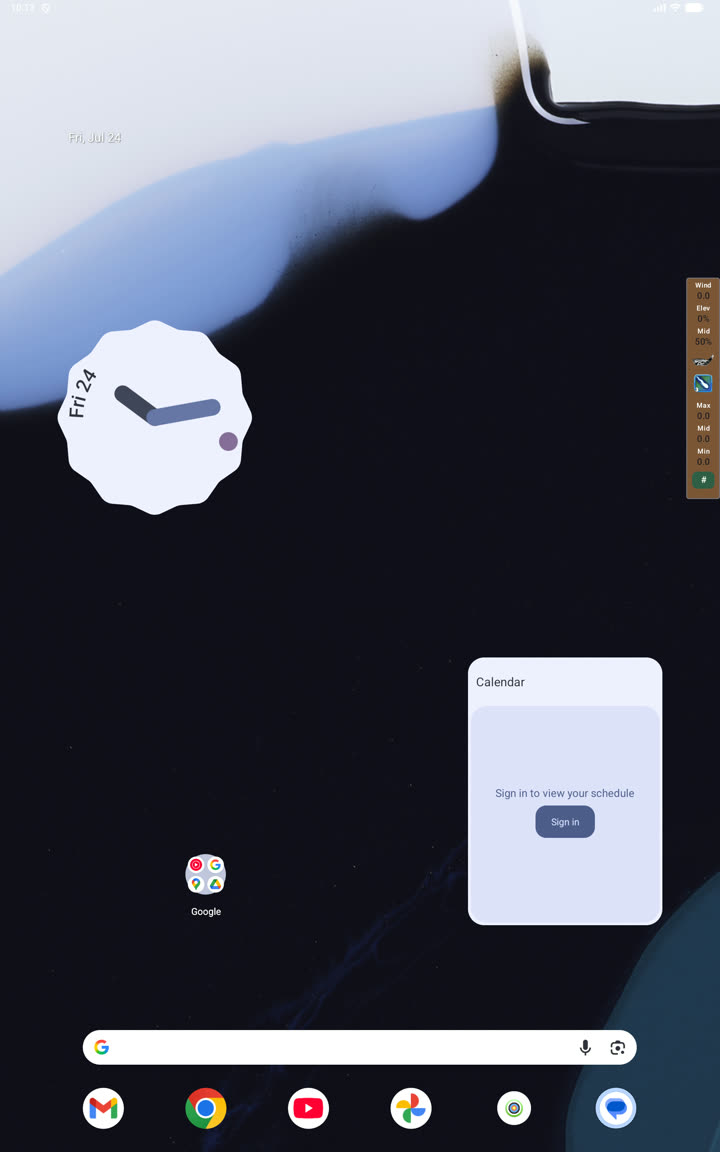
Start the overlay from Settings, return to the game and tap the Clash Caddie control. Use the overlay menu to move controls to the left or right side. Resize the ring and input panels under Settings if they cover important game controls.
Enter a shot
- Enter wind
Use the numeric keypad. Clear the value before entering the next shot when automatic reset is disabled.
- Set elevation
Choose the positive or negative elevation that matches the shot.
- Choose the club
Tap the club used for the shot and confirm its level matches the active account.
- Set the slider
Drag the slider or enter the distance position supported by your input layout.
- Read the rings
Use the min, slider, mid or max adjustment that matches the club position.
Powerballs
Open the powerball picker and select the ball in use. Its wind resistance is included in the result. Clear the powerball when returning to a normal ball.
Collapse, switch sides and close
- Collapse the input panel to keep only the small overlay control visible.
- Switch sides if the overlay blocks Golf Clash controls or the target area.
- Stop the overlay from Settings when you are finished.