Getting started
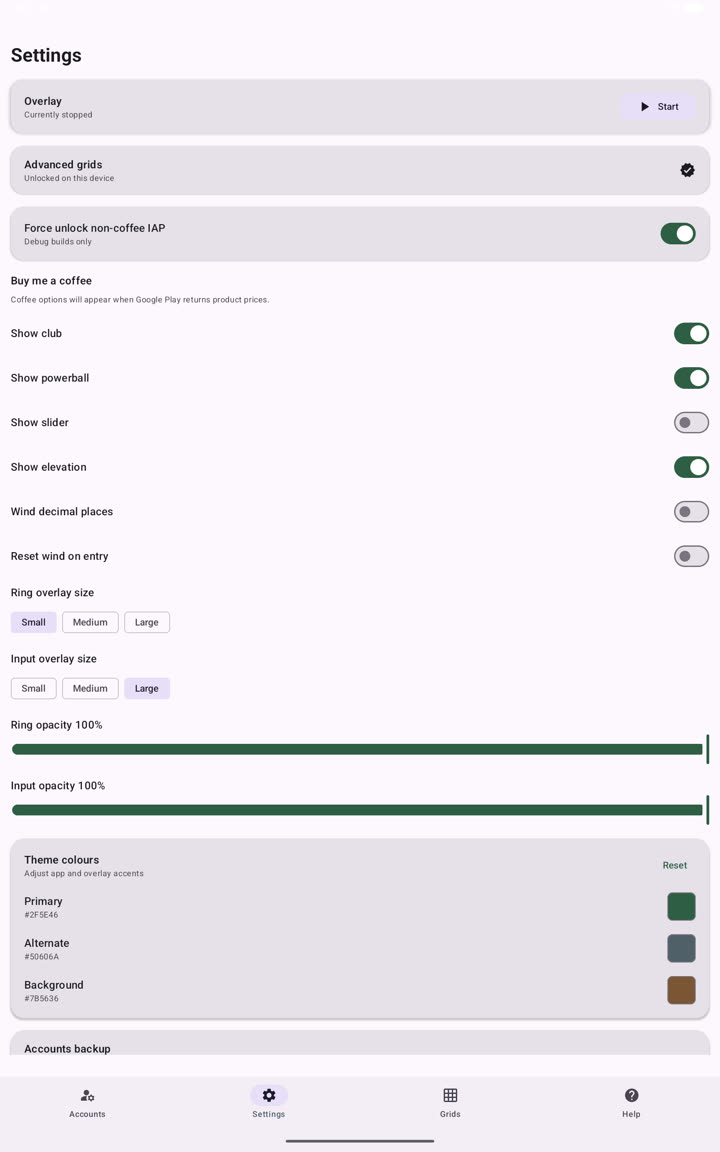
Android uses a special permission so Clash Caddie can remain visible while another app is open. You control when the overlay starts and stops.
Allow display over other apps
- Open Settings in Clash Caddie
Find the overlay status card at the top of the Settings screen.
- Tap Start
If permission has not been granted, Android opens the Display over other apps settings screen.
- Allow Clash Caddie
Enable the permission, then return to Clash Caddie.
- Start the overlay again
The status changes to show that the overlay service is running.
Create an account
Before calculating adjustments, open Accounts and set the levels for the clubs on your Golf Clash account. See Accounts and clubs.
Open the overlay
After it starts, return to your home screen or Golf Clash. Use the compact overlay control to open wind input, toggle grids or close the panel.